Friday, August 9, 2019

What Is The Solar Power Financial Viability Inflection Point For Texans?

In my 2015 post "Have Solar Systems Finally Reached Financial Viability For The Masses?" I concluded that solar systems had not yet reached financial viability in Texas because the cost of electricity from an electricity provider was less than what it would be though a purchased or leased solar system.  In this post I'm checking to see if the current cost of solar has finally reached the financial tipping point and if not, what is the tipping point in Texas.

For this research, I called several solar companies.  However, the only three that would provide quotes over the phone were Tesla (formerly Solar City), SunRun, and Elevation Solar. All three were more than $.11/kWh.  This is still $.03/kWh more than what I'm currently paying on average.  Here's the monthly data from my house.  On average, my actual cost for the last 12 months was $.09/kWh which is not far off from the $.086/kWh in my electricity provider contract.


According to PowerToChoose.org, It looks like the price for my usage is dropping to $.076/kWh for the next 12 months.


The good news is that the average solar power price since 2015 has dropped from $.13/kWh to $.11/kWh.  If the rate reduction of $.01/kWh per 2 years continues the projected breakeven rate of $.09/kWh would arrive in 2023.  It is worth noting that my electricity rate has been under $.10/kWh for more than the last 15 years where I live in DFW.

Unfortunately, my prognostication regarding lowering the cost of solar by 10x with the transition to graphene-based solar cells has yet to be realized.  I'm still hopeful as the scientific community still believes that graphene will dramatically increase the energy capture percentage and improve energy transfer efficiency.  As a bonus, graphene's transparency lends itself to a much larger array of applications including windshields, car wraps, phone screens, home and business window films, ... etc. 

The following video provides a great primer on the rationale for graphene efficiency improvements.


Other innovations in solid-state batteries and super-capacitor storage will also greatly improve energy transfer efficiency and reduce the cost of electricity storage over the next 5 to 10 years as well.

Once these three technologies are fully realized and applied solar power solutions, the price for electricity will likely drop to less than a penny per kWh.  Hopefully, we will see that power revolution in my lifetime.

Two very important notes regarding investing in a solar system in Texas:
1. The technology employed at the time of installation cannot be upgraded until you pay off the loan. Therefore, if solar efficiencies double next year, you can't take advantage of that benefit for 20 years or until you pay off the loan.
2. If your roof gets damaged by hail, the installer has to remove the solar system and then re-install it after the roof is replaced.  The costs for removal and re-install depends on the number of panels installed.  One company's estimate was $7,000.

Let's consider an example.  Using current technology, the Tesla solution using standard tiles (not the cool roof tiles) including Power Walls would take 35 years to break even on a 20-year loan.  Once the loan was paid, I would still have to pay for electricity because my house is not big enough for enough panels to exceed electricity usage.

If the solar capture and efficiency improve by 5x next year, it would only take 5.5 years to pay back the loan and then I would be accruing over $9,000/year of net-metered credit through excess load generation.

As for our house, we will wait until technology advances to the point that the break-even is less than 5 years.

Monday, May 4, 2015

Have Solar Systems Finally Reached Financial Viability For The Masses?

With the release of Tesla's PowerWall last week at an incredibly reasonable price, I got really excited about the prospect of solar energy becoming financially viable again.  So, I started looking into a modern Solar system for our house.  My interest was motivated not so much to go off the grid as much as to lock in more stable and reasonable electricity costs through the next 20 years and to be a good steward of natural resources.  The bottom line was that it was going to cost around $50,000 after the 30% tax credit for my house to meet our energy demands.

The estimated energy cost with the solar system including use of PowerWall to store solar energy collected during the day would be reduced to about 7.9 cents per kWh.  And the electricity usage  offset by solar production for my household as you can see below would only be around 58% with existing solar system technology:


My current rate in the DFW area of Texas is only 8.4 cents per kWh.  And the energy rate over the last year has seen a downward trend as you can see from the screen shot from PowerToChoose.org.  The current rate for new annual contracts is around 7 cents per kWh.


The estimated lifespan of a solar system with a good maintenance program (a.k.a. additional cost) is only about 20 years.  If the current electricity rates persisted at around 7 cents per kWh over the next 20 years, I would loose money from the investment.  Given these data points, it was a no brainer to put the brakes that project for now.

On the up side, if researcher's claims about graphene increasing solar cell power production 1,000 fold materializes in the next 5 to 10 years, then solar will finally become a financially viable option for the masses.  And this would only be amplified further if the advancements by graphene also improve AC to DC and DC to AC conversion efficiency, battery charging efficiency and power density of batteries.

On a related but separate topic, the biggest concern that I have with Tesla's PowerWall is the risk it poses on making a house fire much worse since Lithium Ion batteries are well known for their explosive potential if charging is not properly regulated and retention guidelines observed or if the batteries catch fire from external factors.  But even that risk may be mitigated over time as aluminium-ion batteries improve and make their way into main stream.

Time will tell.  Here's hoping that Solar finally becomes economically viable for the masses in the next 5-10 years.

Brad

Monday, April 7, 2014

What should you do about the end of Windows XP?


I continue to be asked by friends and acquaintenances what they should do about Microsoft Windows XP reaching the end of support.  My answer is short and sweet.

If you love Microsoft Windows, then find a good deal on a new laptop or desktop and find a friend or service to help you migrate your data from the old computer to the new one.  I also encourage them to upgrade to Windows 8.1 so they have the option to preserve some familiarity to Windows XP.  I keep an eye out for laptops and you often can find a decent new Lenovo or Toshiba at BestBuy.com for $350 or less.  You can also get great deals on season close outs a local retailers as well.

For those wanting to find a new Windows based laptop, I have a few more words of advice.

  1. If all you really want to do is surf the web, do email, and watch movies, you may be much better served long term to just get a Tablet (Microsoft Surface, Apple iPad or Android...).  Tablets are much easier to carry around and typically have much better battery life.
  2. If you plan to buy a laptop, one thing that has changed over time with the intervening versions of Windows and the malware protective software required together with Windows to keep Windows safe have raised the minimum amount of memory (aka Random Access Memory or RAM) required to at least 2-3GB.  Therefore, if you are doing basic word processing, watch Netflix, 4GB of RAM should be sufficient.  However, if you plan to run memory intensive applications like video editing software, Logos or run virtual machines, you will need at least 6GB of RAM and possibly more depending on the demands of the mix of applications you plan to run.
  3. If you plan to run a virtual desktop through Microsoft VM, VMWare Fusion or VirtualBox, be sure that your computer is sized to add at least 2-4GB for the virtual machine and also be sure that you have at least 100-500GB reserved for snapshots or copies of the VM so that you have safe versions to revert to in the event that something goes wrong with the VM.

If on the other hand, you are ready for a change or just want more of a long term return on your investment, I encourage you to consider purchasing an Apple Mac.  One great thing about going the Mac route is that you can run Windows on your Mac so that you can have the best of both worlds.  When or if your Windows gets infected with a virus or malware, you can just revert to snapshot or archive copy of the Windows virtual machine image.  MacMall does a great job of offering new Mac's that are pre-installed with the latest version of Windows via the Parallels virtual machine desktop software.  If you want to know more about my perspective on the total cost of Apple Mac ownership, I've already written about that here.

I hope this helps your decision making process.

Blessings to you.

Brad


Friday, March 21, 2014

Total Cost of Apple Ownership...

Occasionally my friends ask my why I spend so much on Apple computers rather than buy an equivalent Windows or Linux based system for much less.  Below are my typical responses:
  1. At the hardware level, a truly equivalent laptop is typically priced about the same or more than an Apple product.  The problem is that most people compare lesser quality and lesser performing products to compare with Apple's offerings.
  2. Apple computers typically last 4 or more years without issues.  This is good for those like me that like to amortize the cost over a LONG period of time.  For the impatient that can't wait to buy the next shiny model laptop, they can often sell their old laptop for a reasonable price thus reducing the purchase price of the new version.  This article from 9to5 Mac provides some good examples of this use case.
  3. A new Mac includes for free both office software (e.g. Pages, Numbers, and Keynote) and comes with many products for personal use (e.g. Mail, Calendar, Contacts, Messages, iTunes, iPhoto, iMovie, Garage Band, Reminders, and others)
  4. Any software that you purchase through the Mac App Store is amortized over up to 5 computers.  For example, when I purchased some of my favorite professional grade apps like 1Password ($50), OmniFocus ($80), OmniGraffle ($100), Pixelmator ($30), Day One ($10), Apple Remote Desktop ($80), Paprika ($20) and more..., the total cost is spread across 5 computers rather than just one.  Purchasing equivalent professional grade software for Windows costs about the same but you can only put it on one computer.
  5. Its tightly integrated and just works.  All of my essential data effortlessly syncs between computers and iDevices without issue.
  6. When you do have issues with software or hardware, just schedule a genius bar appointment at your local Apple store and they will work hard to take care of you.
  7. For those of you that are newbies to Apple computers, I HIGHLY recommend that you pay the extra $99 to get a full year of scheduled appointments at any Apple store through the One to One program.
  8. For geeks like me, the real tipping point came when Apple switched their underlying operating system to based on UNIX.  UNIX is highly resilient, reliable and offers my favorite working environment: bash shell script.
Hope that helps anyone that might be trying to figure out the pros and cons between getting a Mac versus something else.

Blessings to you and yours!

Brad

Friday, March 14, 2014

Are you 1 breach away from giving away access to ALL your online accounts?

Hello friend,

It's happened again.  Another friend's yahoo mail was compromised this week.  Sadly, if like many people that use the same password everywhere the loss of just one password can result in rapid breaches into every other online account they own.  Examples include their bank accounts, credit card accounts, brokerages, Facebook, LinkedIn, Apple iTunes, ... and the list goes on.  Please, please, please, I implore you to use a unique, long and complex password for EVERY online account.  One of my favorite tools toward this end is called 1Password.  Below is a video providing an overview of their product.  Disclaimer: I do NOT work for 1Password nor do I derrive ANY financial benefit from recommending their product.  The only thing that I get is the satisfaction of knowing that users of 1Password can help stem the tide of account breaches and reduce the impact to their online accounts when one of their many accounts are breached.


1Password works on Windows computers, Apple OSX computers, Apple IOS devices, and Android devices and better yet can be synced across all of them.  More info on 1Password at https://agilebits.com/onepassword.

May the strong password be with you...


Blessings to you!

Brad

Monday, August 26, 2013

May the strong password be with you...

A dear friend asked what the best way to change their passwords in all of their accounts on a regular basis.  I recommended that they get a trustworthy password storage application to help with this process. My favorite app for this purpose is 1Password.  Regardless of the password management product that you use, the following procedure.

1. Login to existing web site with existing credentials.  For example, go to http://amazon.com and login.
2. Navigate to personal profile page where you can chage your password.   In our example, I believe you click on "Your Account", then click on "Account Settings", and finally you can click on "Edit" password.
3. Open up your password management software.
4. Bring up the account if it is an existing account in your password management software.  If there isn't  an entry in the password management software for this web site or application, add one.  One of the features that I really like about 1Password is that when you login to a web site, 1Password will ask you if you want to save the credentials into 1Password so that it automates adding new entries and updating existing ones.
5. Enter your old password into a password history section of the password management program's entry for the target web site or application.  In 1Password, I enter the old passwords into the notes section.  This is a good habit to get into because sometimes the new password that you entered does not satisfy the password policy of the web site or application and you have to re-enter the old password.  If you had overwritten your old password with a new one in your password management software and didn't remember the old one, you may have to use the password reset function of your web site or application to change the password rather than just changing it through your profile settings.
6. Use the password generator of your choice to generate a strong password.  If the web site permits, I usually try to pick a password that is 30 or more characters long with at least one numeric, one lower case alpha, one upper case alpha and one non-alphanumeric charcter.  The two exceptions that I don't do any more are replace vowels with similarly looking numbers nor do I use an excalmation point at the end because these are used in crack dictionaries.
7. Use the newly generated password to change the password in your web site profile or application.
8. Replace the old password with the new one in your password management software.
9. Be sure to save your changes in the web site/app and in your password management software.

May the strong password be with you!

Brad

Monday, June 17, 2013

IOS Address Book Directions To GPS Coordinates via Apple Maps, Google Maps and TomTom

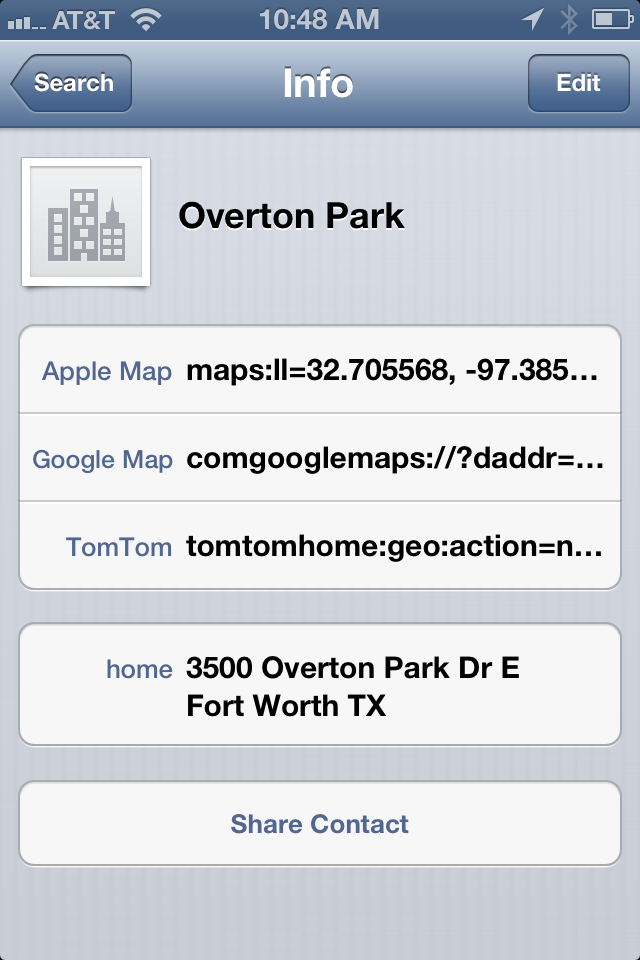
Over the past several years of using Global Positioning System (GPS) systems, I have observed that the map data isn't always as precise or even accurate as we would like for it to be.  In a recent example, dear friends of ours invited us to a party at a long meandering beautiful park called Overton Park.  No problem getting to the park using GPS Maps apps like Apple Maps, Google Maps and my favorite, TomTom.  However, finding where along the nearly 2 mile stretch that the party was taking place was another matter altogether.  I recently found a satisfactory solution for this problem through using the GPS coordinates.  With this solution, you can create an address book entry that when you click on the entry in your iPhone, it will open up the respective GPS Maps app, and provide directions to the specified GPS coordinates.

Start with obtaining the GPS coordinates using Google maps on your desktop.  Drill down into the exact location of interest.  Then, right click on the exact location and select "Directions to Here".  On the left side of the page, the GPS coordinates will be displayed in the bottom of the two fields.  Here is a screen shot of my example for Overton Park:


Now create an address book entry with a home page URL field using the respective preferred GPS app.  Below are examples for each of the main GPS Apps that I use:

Apple Maps:
maps:ll=32.705568, -97.385133&q=32.705568, -97.385133

Google Maps:
comgooglemaps://?daddr=32.705568,-97.385133&directionsmode=driving

TomTom:
tomtomhome:geo:action=navigateto&lat=32.705568&long=-97.385133&name=OvertonPark

Here is a screen shot of the OSX Mountain Lion Address Book entry:


Once the iCloud syncs the data to my iPhone, here is what it looks like in the OSX Address Book:


Once you have the Address Book card just the way you like it, you can share it as a vCard so that others can just add it to their address book by double-clicking on the vCard.  Here is a screen shot of the sharing options available with the Apple OSX Mountain Lion Address Book app:

That's it.  Now, if you click on any of those links in your iPhone Address Book app, it will open the respective GPS Maps app and provide directions from your presentation location to the desired GPS coordinates.

Enjoy!

Brad